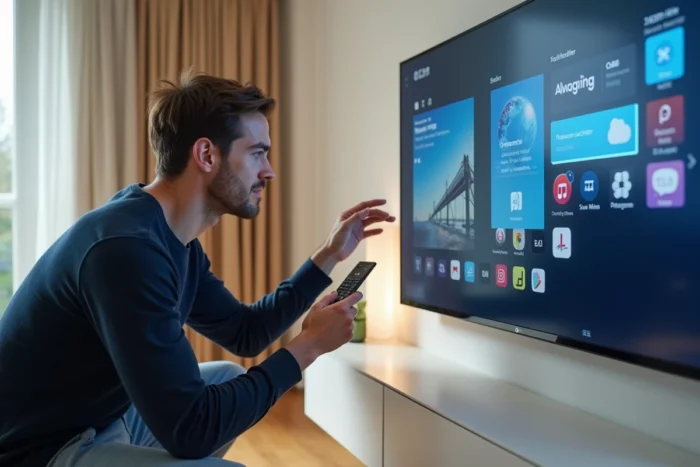
LG TVs equipped with WebOS do not run on Android. This proprietary operating system uses its own app store, the LG Content Store, and does not natively support the Google Play Store.
The confusion arises because LG also markets Android TV models in some markets, which do come with the Play Store by default. Understanding this technical distinction helps avoid unnecessary manipulations and choose the right method to access Android apps on an LG TV.
WebOS and Android TV: two systems that LG uses in parallel
Before attempting any installation, it is essential to identify the system running on the TV. The vast majority of LG TVs sold in France (OLED, NanoCell, QNED ranges) operate on WebOS. This system manages its own app catalog through the LG Content Store, accessible from the Home button on the remote control.
On an LG Android TV, the Google Play Store is directly accessible from the home screen, just like on a smartphone. The procedure described in most online guides for installing the Play Store on a LG WebOS TV actually applies to Android models, not WebOS models.
To check the installed system, simply open the TV settings, then the “About this TV” or “TV Information” section. If “webOS” appears, the Play Store cannot be installed natively. If “Android TV” or “Google TV” is displayed, the Play Store is already present or can be activated in the settings.
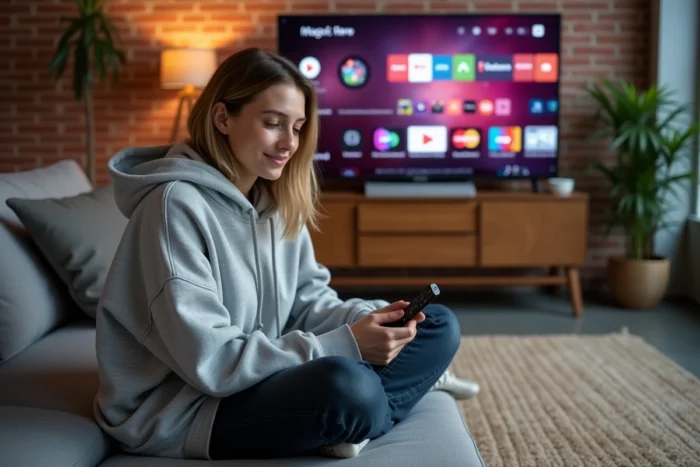
Why the Play Store cannot be installed on WebOS
WebOS is based on a modified Linux kernel, incompatible with APK files designed for Android. Loading an APK file from the Play Store via a USB stick, as some tutorials suggest, does not work: the TV simply cannot execute this type of file.
WebOS does not have the Google Play Services framework, a set of software libraries that nearly all Android applications depend on for managing authentication, notifications, and updates. Without this foundation, even a manually transferred Android app could not launch.
Attempts at sideloading on WebOS via developer mode exist, but they concern applications specifically compiled for WebOS, not Android APKs. This mode is intended for developers testing their own creations, not for installing a third-party store.
Android TV or Google TV box: the reliable solution via HDMI
The most straightforward method to get the Play Store on an LG WebOS TV is to connect an external Android TV or Google TV box to an HDMI port. The TV then serves as a screen, and the entire application interface is managed by the box.
Several criteria guide the choice of the box:
- Google certification (“official Android TV” or “Google TV”) guarantees access to the full Play Store, automatic updates, and Google Play Services. Non-certified boxes often offer an alternative store that is less comprehensive and less secure.
- The connectivity must include at least one HDMI port, one USB port, and a dual-band Wi-Fi connection. An Ethernet port is preferable for video streaming stability.
- 4K HDR compatibility should be checked if the LG TV supports these formats, which is the case for most recent models.
- The remote control provided with the box generally includes a microphone for voice search via Google Assistant, simplifying navigation.
Once the box is connected, simply select the corresponding HDMI input on the TV. The Google TV or Android TV interface appears, with the Play Store ready to use. Installing applications (streaming, games, utilities) is done exactly like on an Android phone.
Alternatives without a box: Chromecast and screen sharing
For those who do not want to add a permanent external device, two options allow enjoying Android applications on an LG WebOS TV without installing the Play Store.
Screen sharing from a phone or tablet
The Screen Share feature built into WebOS uses the Miracast protocol to display the screen of an Android device on the TV. Activation is done from the TV’s “Connection” menu, then via the “Cast Screen” or “Smart View” option on the phone.
This method has noticeable latency, making it unsuitable for gaming. However, it is suitable for watching a video or occasionally navigating an app.
Integrated Chromecast or dongle
Some Android applications (YouTube, Netflix, Spotify) support the Google Cast protocol. Tapping the Cast icon in the app sends the stream directly to a Chromecast dongle plugged into the TV. The phone acts as a remote control, not as a relay screen, eliminating the latency issue.
The LG Content Store also offers native versions of most major streaming applications. Before considering a box or casting, checking if the desired application already exists in the WebOS catalog can save time.
WebOS and LG Content Store updates: expanding the available catalog
LG regularly enriches the Content Store catalog through WebOS updates. A TV with outdated firmware may miss recently added applications.
The update can be initiated from the TV settings, under “General,” then “About this TV,” and finally “Check for updates.” A stable internet connection is required throughout the procedure.
If a specific application is missing from the Content Store after the update, the only option remains the external box or casting from another device. LG does not plan to open WebOS to the Play Store, with the two ecosystems remaining technically and commercially separate. The choice thus boils down to making the most of the existing WebOS catalog or adding an HDMI device to access the Android universe.