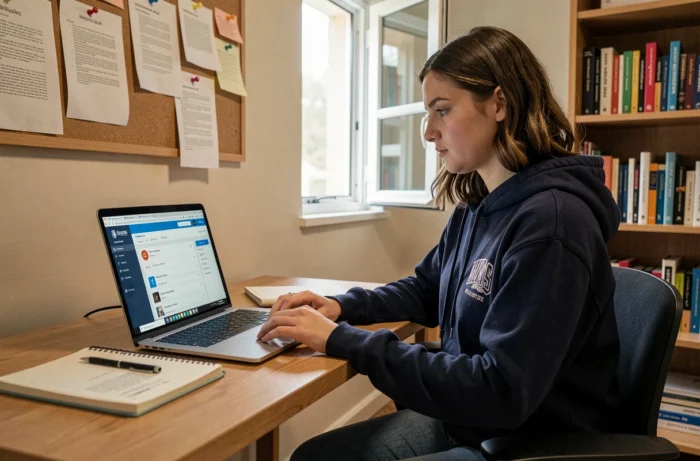
First login to MyNeomaAgora, and you land on a classic Microsoft login page. No integrated tutorial, no guided tour. For a new NEOMA student, the platform looks like an ordinary SharePoint, which creates quite a bit of confusion in the first weeks. This guide covers the concrete points to master to avoid wasting time on the MyNeomaAgora student space.
MyNeomaAgora and Microsoft 365: understanding the architecture before navigating
MyNeomaAgora is not software developed in-house by NEOMA. It is a combination of Microsoft 365 components: SharePoint Online for the portal, Teams for communication, Outlook for email and calendar. This architecture has a direct consequence on daily usage.
When looking for an official document (academic regulations, certificate, course schedule), it is generally found via the SharePoint portal. On the other hand, to collaborate on a group project or communicate with a professor, it happens in Teams, not on the MyNeomaAgora homepage.
The reflex to adopt from the start: identify which tool corresponds to which need. The portal centralizes documents and administrative announcements. Teams manages real-time exchanges. Outlook automatically retrieves notifications and the academic calendar. You can access MyNeomaAgora for students from any browser with your NEOMA credentials, but keep in mind that some actions require switching to the corresponding Microsoft application.

NEOMA password: the reset that traps new students
This is the most common problem at the start of the term. A blocked student tries to reset their password via the classic Microsoft page (account.microsoft.com). Result: it doesn’t work for MyNeomaAgora.
The reset must go through the dedicated NEOMA portal, accessible from the MyNeomaAgora login page. The reset link redirects to account.neoma-bs.fr, not to the public Microsoft servers. Confusing the two means going in circles without ever recovering access.
If the reset portal does not respond or if the account remains locked after several attempts, the NEOMA Information Systems Department Service Center remains the only competent contact. Feedback varies on response times depending on the time of year, but at the start of the term, it’s better to anticipate and test access several days before classes begin.
Checks to make before the first day
- Log into MyNeomaAgora at least a week before the start of the term to check that the account works and that the password is active.
- Set up Outlook (mobile or desktop app) with the NEOMA address to receive notifications of the academic calendar in real-time.
- Join the Teams channels related to your program: they appear automatically once the account is activated, but their display may take a few hours.
Academic calendar synced in Outlook: what it changes concretely
The NEOMA calendar does not only exist on the portal. It automatically syncs into each student’s Outlook calendar via Microsoft 365 integration. Class slots, exam registration dates, and convocations appear directly in the application, without any additional manipulation.
In practice, this means you don’t need to return to MyNeomaAgora every morning to check your schedule. A quick look at Outlook is enough. Schedule changes (room changes, class cancellations) are also reflected in the calendar, sometimes with a slight delay.
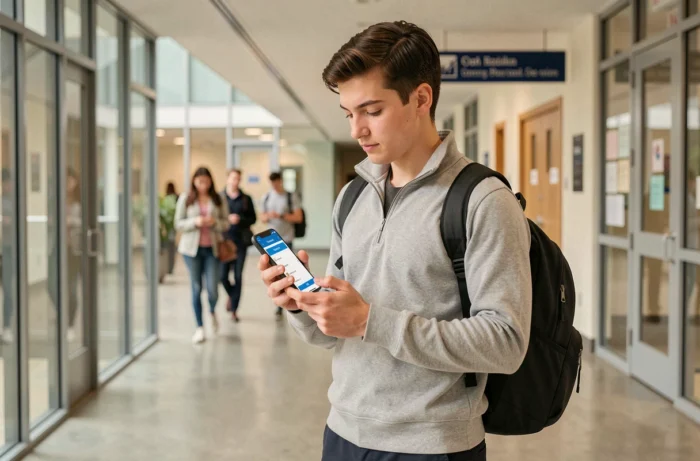
The common trap: not activating push notifications on the Outlook mobile app. Without them, you miss last-minute alerts. On both Android and iOS, you need to check that notifications for the NEOMA calendar are allowed in the app settings, not just in the phone settings.
Limitations of MyNeomaAgora: when the portal is not enough
Centralizing all student life in a SharePoint portal has its limits. Feedback points to a recurring observation: trying to do everything from MyNeomaAgora sometimes creates more friction than value. The portal works well for official documents and announcements, but it becomes less practical as soon as quick interaction is needed.
For group projects, exchanges with associations, or coordination between campuses (Reims, Rouen, Paris), Teams remains the main tool. MyNeomaAgora serves as an entry point, not a Swiss army knife.
What works well on the portal
- Downloading administrative documents: certificates, internal regulations, academic guides.
- Consulting official announcements related to the program and scholarships.
- Accessing quick links to the school’s partner services (housing, good deals, support).
What works better elsewhere
Direct messaging with teachers goes through Outlook or Teams. Managing shared files for a course is done in dedicated Teams spaces, not in the SharePoint folders of the main portal. And for registrations for certain campus events, NEOMA sometimes uses third-party tools (Calendly or external forms) that do not always appear clearly on MyNeomaAgora.
The portal remains the administrative backbone of student life at NEOMA. To make the most of it, you save time by using it for what it does well (documents, announcements, calendar) and switching to Microsoft 365 applications for everything else. Testing your connection before the start of the term and configuring Outlook correctly is the minimum to start your journey smoothly.